Farmnavigator Software Update
Verifique el ID de su UNIDAD FARMNAVIGATOR y seleccione la actualización de software correcta:
G7 Plus
|
G7 Plus / G7 ISO / G7 ISO VT / G7 Terminal
Descargar Software Update |
|
|
Three ways to update G7 Plus:
WiFi Update
 |
|
|
USB update
 |
|
|
Micro SD update
 |
|
|
divider
WiFi Update
|
|
|
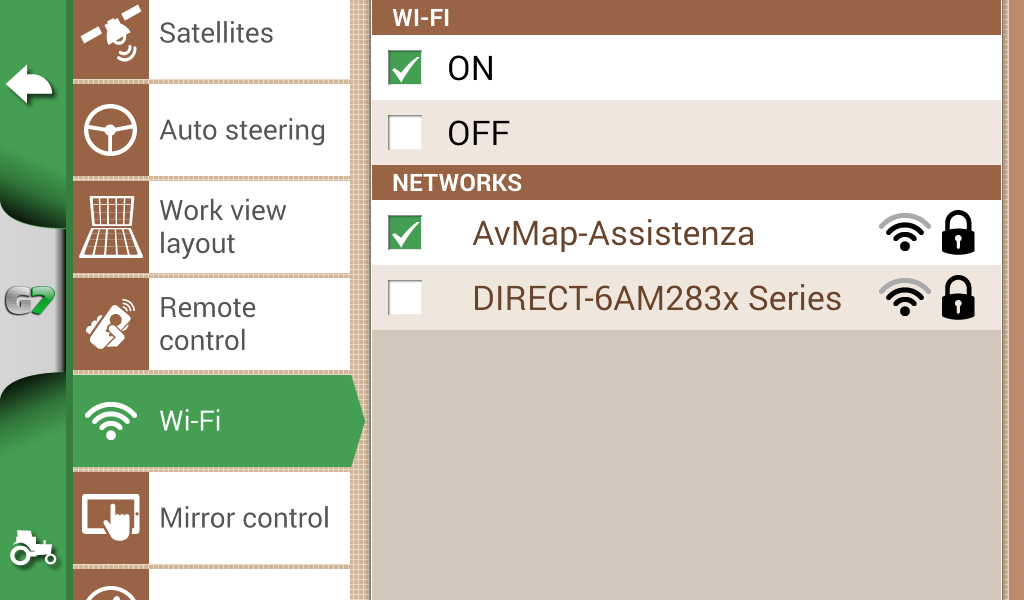
1. Enable WiFi
Setup > WiFi > ON
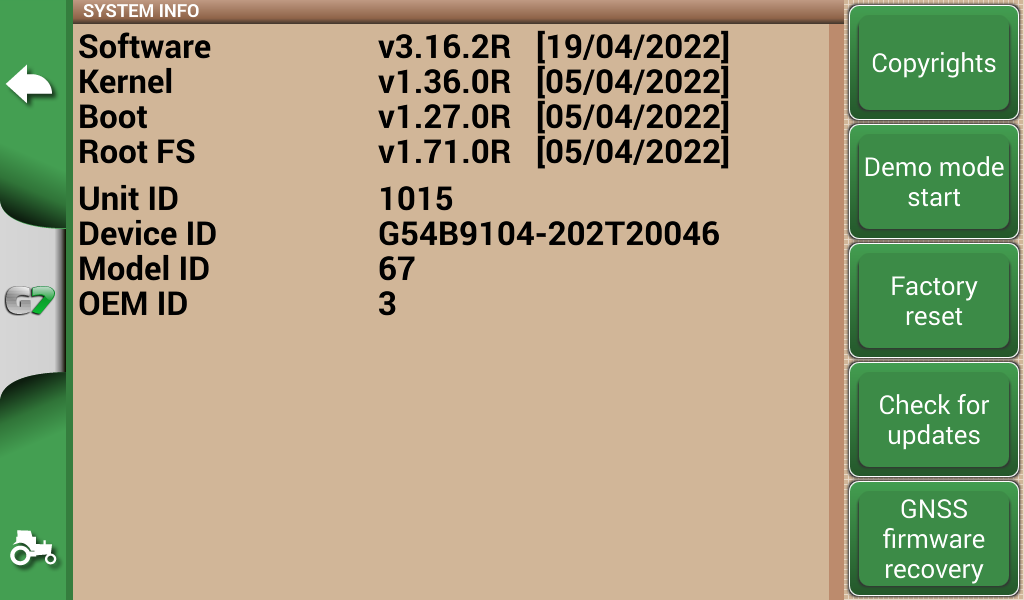
2. Check for Updates
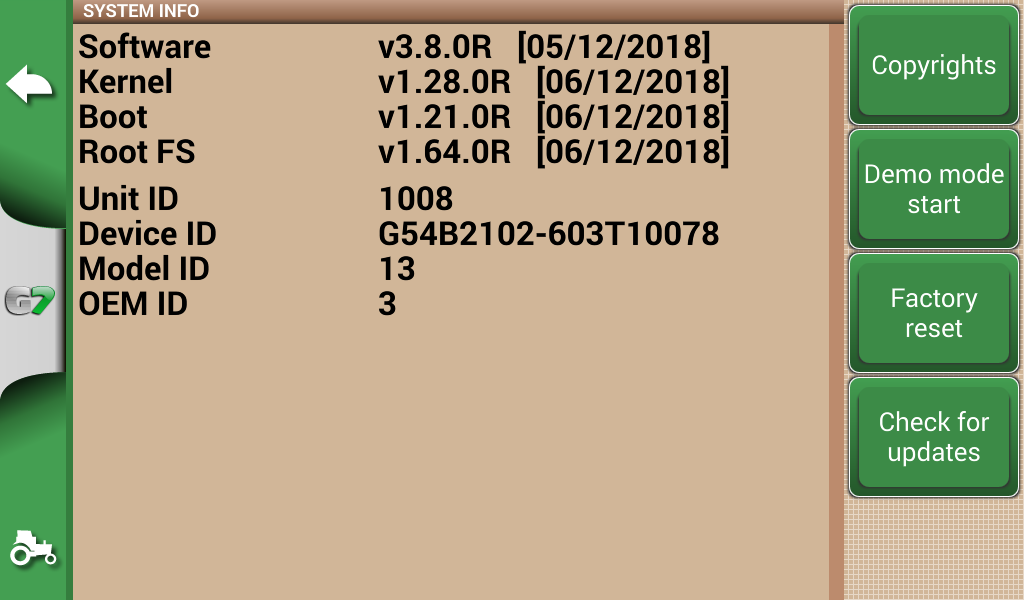
Setup > System info > Check for updates
divider
USB update
|
|
|
Where can I find the product code?
The product code is written on a label found on the back of the device.
N.B. You need to remove the Farmnavigator from its bracket to be able to read the product code.
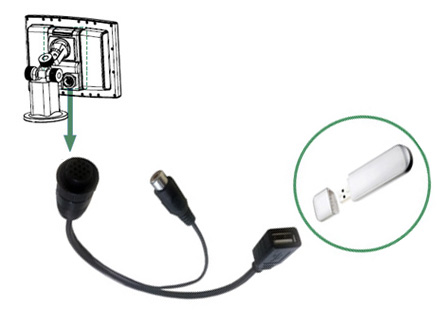
Software Update instructions
1. Download on your PC the Update for your unit ID
2.. Decompress the file and find two other folders: 'GS7_upload' and 'upload'.
3. Copy these folders on a USB stick (in the root of the disk).
4. Switch off the G7 and insert the USB - Video cable, then insert the USB stick in the cable's USB port.
5. Switch on the G7, select UPDATE NOW and wait until the finish of the procedure. Once the update procedure is finished, G7 Farmnavigator will restart.
6. You can take out the USB stick.
divider
Micro SD update
|
|
|
Where can I find the product code?
The product code is written on a label found on the back of the device.
N.B. You need to remove the Farmnavigator from its bracket to be able to read the product code.
Software Update instructions
You will need:
- An empty micro SD card (minimum 1 GB)
- A micro SD reader
1. Download on your PC the zip file.
2. Decompress the file and find two other folders: GS7_upload and upload.
3. Copy these folders in any MicroSD card, using a card reader, then safely remove the card.
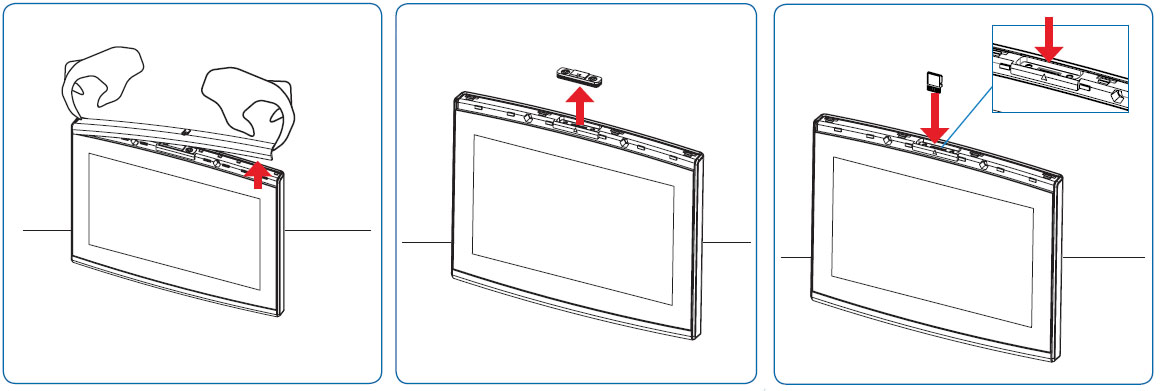
4. Switch off the G7 Farmnavigator and insert the MicroSD with the folders.
5. Switch on the G7 Farmnavigator.
6. G7 Farmnavigator will automatically start the update procedure. You can check the status by reading the messages appearing on the display.
7. Once the update procedure is finished, G7 Farmnavigator will restart.
8. Once the G7 Farmnavigator has restarted, you can take out the MicroSD card.